Embrilliance Essentials Embroidery Software to the Rescue

Embrilliance Essentials Embroidery for Mac

If you are a Mac owner, and have given any thought to exploring machine embroidery, you may or may not, realize that most embroidery sewing machine software is not compatible with Mac computers. When I first discovered this little-known fact, I felt immediately deflated, but I soon realized that Embroidery Software for Mac users actually does exist. It just took a little time and some researching on my part.

Embrilliance Essentials to the Rescue

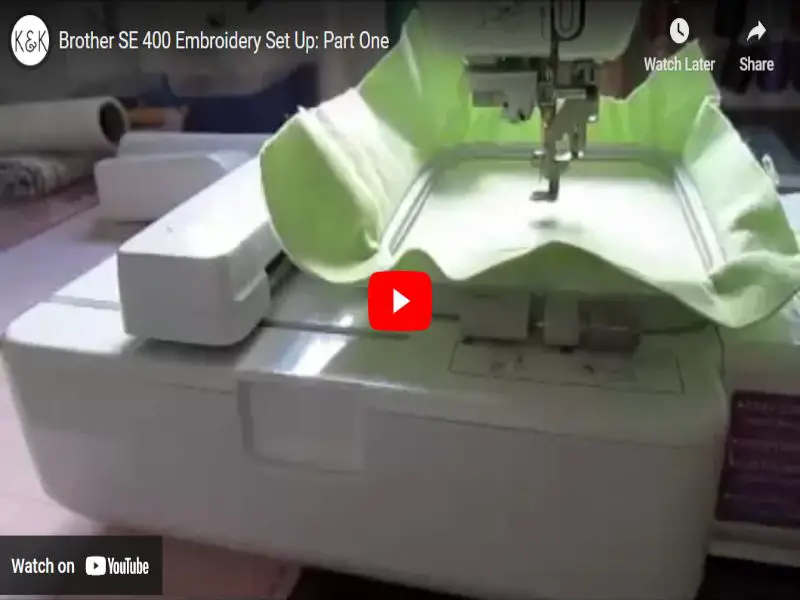
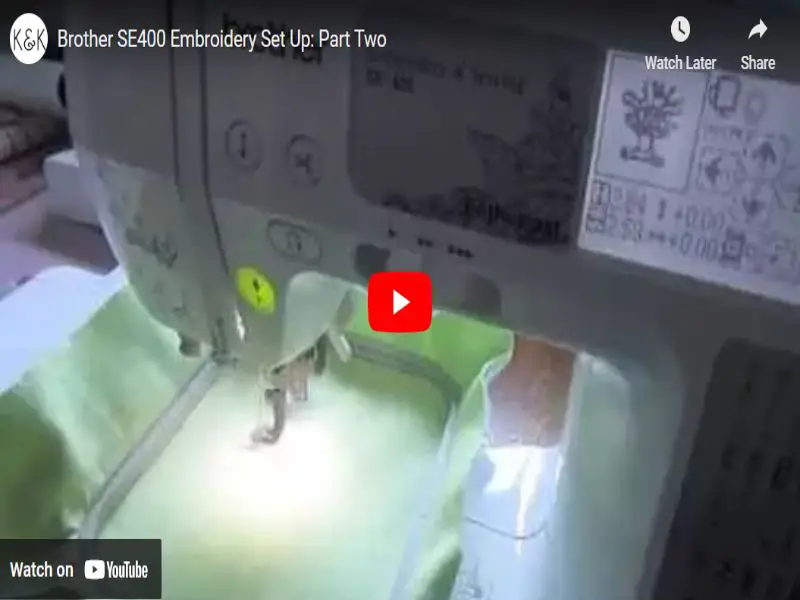
I  sew and embroider with a Brother SE 400, which supports direct USB connection to any computer with a USB  port. That’s extremely convenient for loading designs directly to my machine, but doesn’t do much for altering, editing or creating. However, much to my delight, I did discover Embrilliance Essentials, an embroidery software for those of us using Mac computers with our Embroidery Sewing Machines (also available for windows PC’s).

Since I have only delved into machine embroidery in the past 2 years, I do not pretend to understand, or know ALL there is to know about machine embroidery. I am learning new things everyday, and inviting our readers to join me, as I explore the world of machine embroidery.

Where Can I buy Embrilliance Essentials?

I purchased Embrilliance Essentials and downloaded it to my MacBook Computer.  The install was smooth (from disk).  You can purchase the disk from SewingMachinesPlus.com or many other online sewing specialty stores. The software is also available on Embrilliance.com as a download or from the Apple Store. I just prefer a disk.

What Can I do with Embrilliance Essentials?

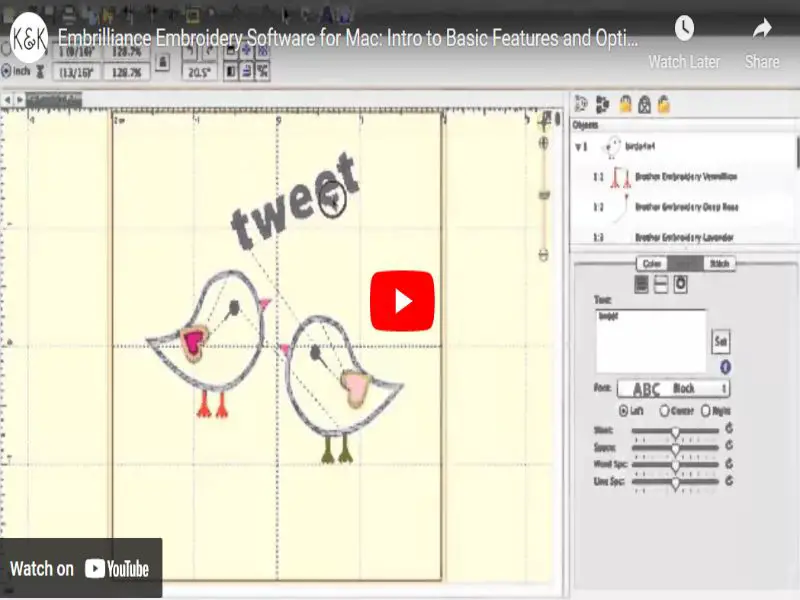
Now, as far as using the software, I have found it to be fairly easy to understand and learn, although there are still some things I am trying figure out. I am able to customize, resize designs, add multiple designs and fonts to create my own designs, change colors, and add special effects. It is not a digitizing software, so you can’t take a drawing and convert it to an embroidery design. It only works with existing embroidery designs and fonts that you have in your collection.

Some Great Features:

  • Includes 12 fonts
  • Can read 28 different embroidery files and write 16 different files
  • Resize down to half, and up to 250%
  • Multi-line lettering
  • Group and Ungroup
  • Overlap designs, remove significant understitching
  • Change and alter colors
  • Run a simulator to visually see how your design will sew out
  • Affordable

Without digitizing, this embroidery software for Mac offers a great selection of customizing tools to make your designs YOUR own. Obviously, the original design creators hold the copyright, but you will be able to add your own touch of creativity with Embrilliance Essentials.

If you are looking for embroidery software that works with Mac computers, I would strongly suggest you consider the Embrilliance Essentials Software.

Bonnie

Note: After publishing this post, we were contacted by Embrilliance Essentials, and invited to be part of their Affiliate Program.  We happily accepted!


Stabilizing Machine Embroidery

When I first purchased my Brother SE 400 Embroidery Sewing Machine, and started creating machine embroidery, I didn’t realize there is a lot more to it than meets the eye. Hoops, stabilizers, stitch density, thread color, tension, etc. It can be a little confusing at first, but with a little research into my manual, I now understand how important these things are in creating a beautiful design. Choosing the right stabilizer, and hooping your project properly are the most important steps to a successful embroidery project. In this post, I want to address the different stabilizers, and why it matters.

What is Stabilizer?

Stabilizer is used as a backing for your embroidery design, to stabilize your fabric when it is placed in your hoop. Embroidery sewing machines operate in multi-directional manner, which pulls and stretches fabric, and stabilizers helps to hold your fabric flat to minimize distortion of your designs.

Why is it important?

Without the use of stabilizers, your fabric will pucker, and your needle won’t sew smoothly. Using the right stabilizer with your fabric is key to a successful embroidery design or appliqué.

Types of Stabilizers

There are 4 main types of stabilizers:

  • Tear away (removed by tearing off around your embroidery design)
  • Wash away (water soluable and removed by dissolving in water)
  • Cut away (removed by cutting around your design)
  • Heat away (removed by heat of an iron)

Stabilizers are also available in different weights. And, while some are permanent, and will remain on the backside of your design, most are temporary and removed after your embroidery is complete. There are also fusible stabilizers and non fusible.  You can use a spray on adhesive for non fusible stabilizer. Fusible versus non fusible is just a matter of personal preference. It can be confusing, but once you learn the differences, it will make your embroidery projects smooth and easy.

Which Stabilizer Should I Use?

It is important to choose a stabilizer that is compatible with your fabric. You will need to consider the weight of your fabric when selecting a stabilizer. Here are some general guidelines for selecting a stabilizer:

  • Use Cut Away Stabilizer on knits, or loose woven fabric / available in light to heavy weight, and generally remain on the back of the fabric, except for what’s cut away around the design.
  • Use Tear Away Stabilizer for natural fiber fabric, with tighter weave/available in light to heavy weight, fusible or non fusible, and removable.
  • Use Wash Away Stabilizer for delicate fabrics, or a heavier water soluble stabilizer for lace work. Wash away can also be use on top of fabric for tracing designs in free motion embroidery, and fabrics with a dense nap to keep the stitches from sinking into the fabric. Available in plastic film, paper, spray, brush on, or liquid.  I have not used the brush on or liquid. (Adhesive backed film and paper available).
  • Use Heat Away Stabilizer for fabrics that are too sheer for cut away, or too delicate for tear away or wash away. Sulky Heat Away  is specially made to get “crisp” and brush off when heated with an iron (follow directions).

There are so many stabilizers on the market, it can be overwhelming, but the basic rules will help you make the right decisions, although some things are learned by “trial and error.”  Every project is different, and requires some planning for the best results. There are a lot of resources on the internet that offer help and guidance for your embroidery project.

Generally, the lighter weight the fabric, the lighter weight the stabilizer. Keep your stabilizers in a sealed bag, as wash away stabilizers can dry out from long term air exposure and become crisp, or become sticky in high humidity.

Our new Embroidery Stabilizer video may help you with selecting stabilizers, and hooping your fabric.  You can view it below, or on our YouTube Channel.  You may also want to take a look at our other crochet and sewing “How To” videos  on our channel.

“We itch to stitch.”

Bonnie


Tote Tutorial ~ It’s a Cinch!

Our latest sewing tutorial is “A Cinch!” You can make this great tote, with minimal sewing knowledge! It’s a perfect tote bag for books, your laptop, a trip to the beach, or the market. The adjustable cinch ties on both sides allows the tote bag to be adjusted in size, making it appealing and practical. And, best of ALL, it’s handmade, by YOU!

Tote Bag Materials

You’ll need a sewing machine, thread, scissors, and fabric. A light weight to medium weight cotton fabric is suggested. Using a contrast fabric for the lining, underside of straps, and ties adds character. There are  5 parts to the tote bag, and below are the measurements that I used.

  • The body  Cut one 18″ x 36″ 
  • The lining Cut one 17.5″ x 36″  (allows lining to lay smoother)
  • The straps  4.5″ x 32″ Cut 2 from main fabric + 2 from contrast fabric=4 (these can be adjusted to your needs)
  • The casing Cut two 3″ x 12″ ( this can be altered up to 4″ longer, if you want more “cinch”)
  • The ties Cut two (I cut mine 1″ x 18″ but if you increase your casing length, you will need to adjust these accordingly, adding length)

Shoulder Tote Bag Video Tutorial

If you need help, feel free to contact me at bonnie@tlcinspirations.com.  Happy sewing!

Copyright © 2011-2012 TLC Inspirations. All Rights Reserved. This tote was designed and created by TLC Inspirations. Please feel free to make this tote for your own personal use, but this design and bags created using this design should not be sold, nor should this design ever be claimed as your own.

Sincerely, Bonnie :)